Trigger Node-RED flows on B&R PLC variable changes (OPC UA)
Node-RED can react to a PLC variable the moment it changes, without polling. It opens an OPC UA subscription, and the PLC’s OPC UA server reports only the values that changed. This guide builds a small, complete example: a PLC task that latches a fault, and a Node-RED flow that logs the fault, waits until its cause has gone, and writes the reset back to the PLC.
Everything runs on one Windows PC with ARsim and Docker. The same flow works against a real PLC by changing one address.
The example turns security off. It allows anonymous logins and SecurityPolicy None, so anyone who can reach port 4840 can read and write the published variables, and all traffic is unencrypted. The Node-RED editor has no login either. That is fine on one PC for learning, but not on a machine network. Step 7 adds a user name login, and Securing the connection lists what to change before real use.
Objective
When you finish, you will have:
- A B&R task whose status and commands are published on the PLC’s OPC UA server, readable and writable by an anonymous client with a dedicated role.
- Node-RED in Docker, subscribed to that status, that:
- logs
FAULTwhen the PLC latches a fault, - writes
command.resetonce the fault condition has been clear for 1 s, - logs
CLEAREDwhen the PLC acknowledges, to the debug sidebar and to a log file.
- logs
Prerequisites
- Automation Studio 6 with ARsim. Tested with AS 6.7.1.5, Automation Runtime 6.6.2 and the OPC UA C/S technology package 6.6.1.
- Docker Desktop for Windows, running Linux containers. Tested with Docker Engine 29.6.2. Node.js is not needed on the PC; it runs inside the image.
- Node-RED 5.0.8 (
nodered/node-red:5.0.8, Node.js 24) and node-red-contrib-opcua 0.2.355 (Apache-2.0). Both are pulled when the image is built in step 5. - For a real PLC: TCP port 4840 reachable from the Node-RED host.
How it works
- Subscriptions do the waiting for you. The server samples each monitored item at its sampling interval, and sends only the values that changed, batched once per publishing interval. Node-RED receives one message per changed variable.
- Sampling is not synchronized with the task. B&R Help says plainly that asynchronous sampling “does not guarantee that the server detected each changed value”. A pulse shorter than the sampling interval can be missed. That is why the PLC latches the fault and the reset is a handshake: the PLC holds the state until the client acts on it.
Steps
1. Write the PLC task
Put everything the client touches in one structure: status for what it reads, command for what it writes. The demo task, FaultDemo, simulates a temperature ramp between 20 and 100 °C every 40 s.
FaultDemo.typ (excerpt):
TYPE
	FaultDemo_typ : 	STRUCT  (*Public API of the FaultDemo task, exposed over OPC UA*)
		command : FaultDemoCommand_typ; (*Written by the OPC UA client (Node-RED)*)
		parameters : FaultDemoParameters_typ; (*Simulation tuning*)
		status : FaultDemoStatus_typ; (*Read by the OPC UA client (Node-RED)*)
	END_STRUCT;
	FaultDemoCommand_typ : 	STRUCT
		reset : BOOL; (*Set TRUE to reset a latched fault. The task clears it every scan.*)
		forceFault : BOOL; (*Hold TRUE to force the fault condition*)
	END_STRUCT;
	FaultDemoStatus_typ : 	STRUCT
		fault : BOOL; (*Latched fault. Stays TRUE until a reset is accepted.*)
		faultCode : UINT; (*FAULT_NONE, FAULT_OVER_TEMPERATURE or FAULT_FORCED*)
		conditionActive : BOOL; (*The fault condition is present right now*)
		temperature : REAL; (*Simulated process temperature [degC]*)
		faultCount : UDINT; (*Faults latched since the task started*)
		resetsRejected : UDINT; (*Resets ignored because the condition was still active*)
	END_STRUCT;
END_TYPE
FaultDemo.st, after the ramp has updated task.status.temperature:
	// Fault condition, with hysteresis so it does not chatter at the limit
	IF task.status.temperature > task.parameters.faultLimit THEN
		internal.overTemperature := TRUE;
	ELSIF task.status.temperature < task.parameters.clearLimit THEN
		internal.overTemperature := FALSE;
	END_IF
	task.status.conditionActive := internal.overTemperature OR task.command.forceFault;

	// Latch a new fault
	IF task.status.conditionActive AND NOT task.status.fault THEN
		task.status.fault := TRUE;
		task.status.faultCount := task.status.faultCount + 1;
		IF task.command.forceFault THEN
			task.status.faultCode := FAULT_FORCED;
		ELSE
			task.status.faultCode := FAULT_OVER_TEMPERATURE;
		END_IF
	END_IF

	// Reset is accepted only once the condition has gone
	IF task.command.reset THEN
		IF task.status.conditionActive THEN
			task.status.resetsRejected := task.status.resetsRejected + 1;
		ELSE
			task.status.fault := FALSE;
			task.status.faultCode := FAULT_NONE;
		END_IF
	END_IF

	// Commands are one-shot: clear them every scan so the client sees its write consumed
	task.command.reset := FALSE;
Clearing task.command.reset every scan turns a client’s write of TRUE into a one-shot. Node-RED never has to write FALSE, and reading the variable back as FALSE shows the PLC consumed the command. The ramp uses the measured cycle time from RTInfo, so the task runs in any task class.
2. Enable the OPC UA server
In the Configuration View, open CPU → Connectivity → OpcUaCs → UaCsConfig.uacfg (the OPC UA C/S configuration) and set:
| Parameter | Value | Why |
|---|---|---|
| OPC UA Client/Server | Enabled | The server is disabled by default. |
| Security → MessageSecurity → SecurityPolicies → None | Enabled | Lets Node-RED connect without certificates. Demo only. |
| Security → Authentication → Authentication Methods → Anonymous | Enabled | Lets Node-RED connect without a user name. Demo only. |
| Security → Authorization → Anonymous Access → User Role 1 | NodeRedClient |
Gives anonymous sessions the role created in step 3. |
Authorization is an advanced group: the editor hides it until you make advanced parameters visible with the editor’s toolbar. Under Anonymous Access, Default Role 1 is fixed to BR_Anonymous; set User Role 1 to NodeRedClient.
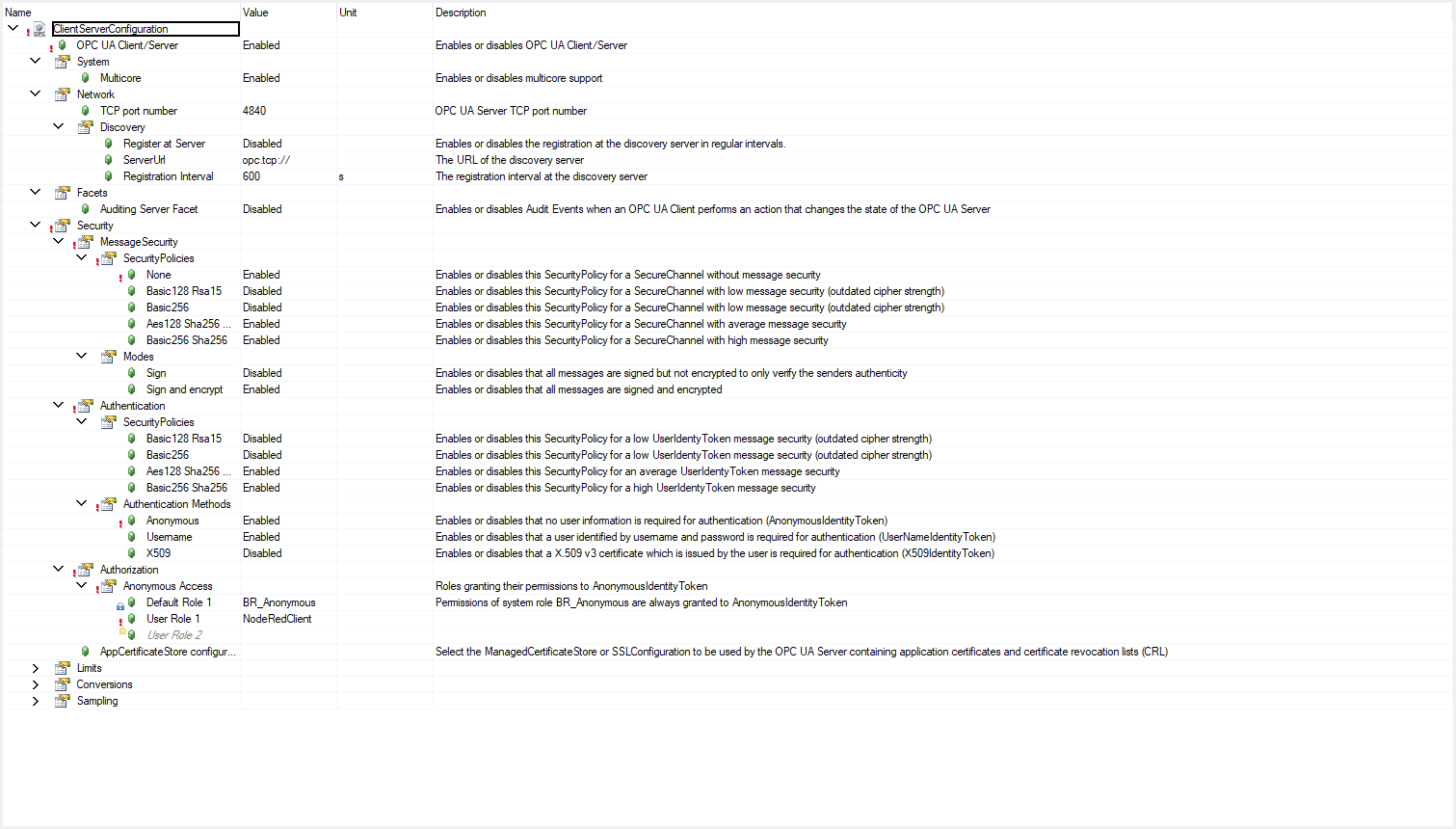
The resulting entries in the file, for reference:
<Property ID="OpcUaCs" Value="1" />
...
<Group ID="SecurityPolicies">
  <Property ID="None" Value="1" />
...
<Group ID="UserIdentityTokens">
  <Property ID="AnonymousIdentityToken" Value="1" />
...
<Group ID="AnonymousAccess">
  <Property ID="DefaultRole0" Value="BR_Anonymous" />
  <Property ID="UserRole0" Value="NodeRedClient" />
</Group>
3. Give the client a role that can read and write
Enabling anonymous logins is not enough. An anonymous session gets the well-known role BR_Anonymous, and B&R fixes that role’s permissions to Browse only. Node-RED could see the variables but read none of them. The permissions of the built-in roles cannot be changed:
| Well-known role | System role | Permissions |
|---|---|---|
| Anonymous | BR_Anonymous |
Browse |
| Observer | BR_Observer |
Browse, Read, ReadHistory, ReceiveEvents |
| Engineer | BR_Engineer |
Browse, Read, Write, WriteAttribute, ReadHistory, ReceiveEvents, Call |
So create a role with only what the client needs:
-
In the Configuration View, open AccessAndSecurity → UserRoleSystem →
Role.roleand add a role namedNodeRedClient.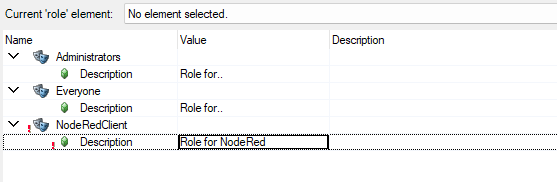
-
Open Connectivity → OpcUaCs →
UaDvConfig.uadcfg(the OPC UA C/S default view configuration). Under DefaultRolePermissions → Role 1, set Name toNodeRedClient, and under Permissions set Browse, Read and Write to Enabled.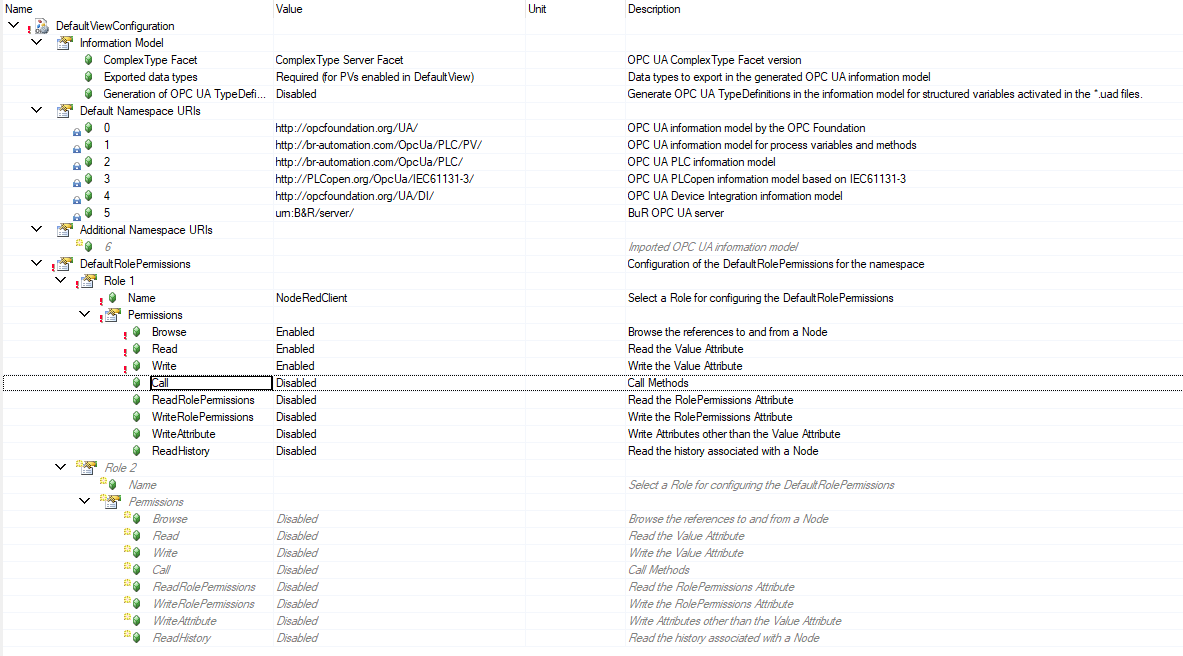
DefaultRolePermissions apply to the whole PLC variable namespace (http://br-automation.com/OpcUa/PLC/PV/), except nodes that define their own permissions. Step 2 already mapped anonymous sessions to NodeRedClient.
<Group ID="DefaultRolePermissions">
  <Group ID="Role [1]">
    <Property ID="Name" Value="NodeRedClient" />
    <Group ID="RolePermissions">
      <Property ID="PermissionBrowse" Value="1" />
      <Property ID="PermissionRead" Value="1" />
      <Property ID="PermissionWrite" Value="1" />
    </Group>
  </Group>
</Group>
A shortcut is to set Anonymous access → User role 0 to BR_Engineer. That works, but it also gives every anonymous client WriteAttribute and Call on every published node.
4. Publish the task variables
- Select CPU → Connectivity → OpcUaCs in the Configuration View, and add Default view from the OPC category of the Object Catalog. AS creates a
.uadfile; double-click it to open the default view editor. - Expand FaultDemo, select
task, and enable it: Enable tag in the toolbar or shortcut menu, orCtrl+Shift+T. - In the Properties window, set Automatic enable to Recursive, so every member of
taskbecomes its own OPC UA node.
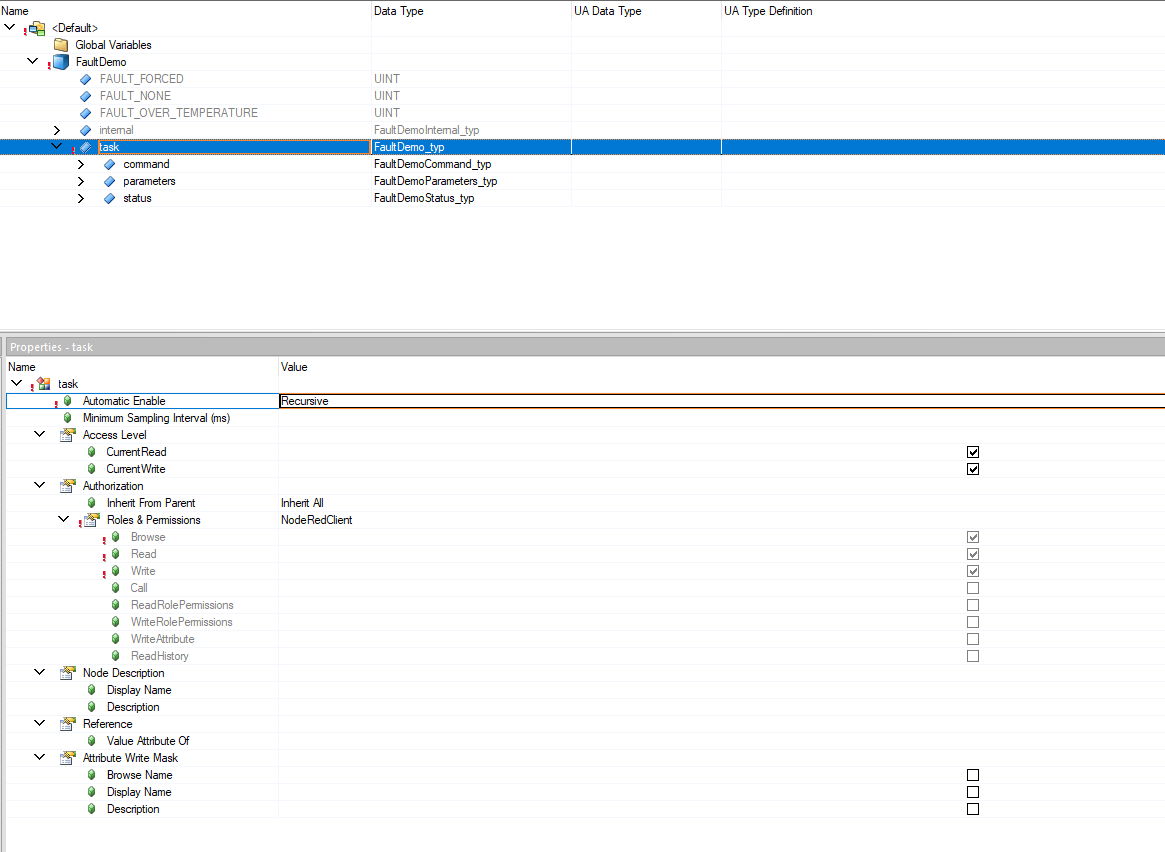
Under Authorization, the node inherits the NodeRedClient permissions from step 3 (Inherit From Parent = Inherit All), so no per-node setting is needed. The .uad this produces:
<Module Name="<Default>">
<Task Name="FaultDemo">
<Variable Name="task" RecursiveEnable="2" />
</Task>
</Module>
Build and transfer to ARsim, or to the PLC. The Connectivity logbook confirms the server started and loaded your map:
tOpcUaComm  NodeSet ./ADDONS/DATA/OPCUA/NodeSet/Generated/OpcUaMap.uar.gz loaded
tOpcUaComm  OPC UA server boot completed
Each enabled member is now a node. The NodeId is the PV namespace index plus ::<task>:<path>:
| NodeId | OPC UA type | Node-RED reads/writes |
|---|---|---|
ns=6;s=::FaultDemo:task.status.fault |
Boolean | read |
ns=6;s=::FaultDemo:task.status.conditionActive |
Boolean | read |
ns=6;s=::FaultDemo:task.status.faultCode |
UInt16 | read |
ns=6;s=::FaultDemo:task.status.faultCount |
UInt32 | read |
ns=6;s=::FaultDemo:task.status.temperature |
Float | read |
ns=6;s=::FaultDemo:task.command.reset |
Boolean | write |
ns=6;s=::FaultDemo:task.command.forceFault |
Boolean | write |
The PV namespace (http://br-automation.com/OpcUa/PLC/PV/) was index 6 on AR 6.6.2. Check it on your target before you rely on it: read the server’s NamespaceArray with an OPC UA browser such as UaExpert. Don’t take the number from the default view configuration, which lists the same URI as 1; that list has its own numbering.
Global variables use ::AsGlobalPV: in place of ::<task>:. Tested with a global UDINT and a global structure, both enabled under Global Variables in the default view:
| Variable | NodeId |
|---|---|
gDemoCounter (UDINT) |
ns=6;s=::AsGlobalPV:gDemoCounter |
gDemo.value (REAL member of a structure) |
ns=6;s=::AsGlobalPV:gDemo.value |
In a browser they sit under Objects → PLC → Modules → :: → Global PV. Reading a whole structure (ns=6;s=::AsGlobalPV:gDemo) returns an ExtensionObject that the client has to decode, which is another reason to subscribe to members.
5. Run Node-RED in Docker
Create a folder with these two files, and a data and a logs folder next to them.
Dockerfile: bake the OPC UA nodes into the image. npm install runs in /usr/src/node-red, so the nodes survive mounting /data.
FROM nodered/node-red:5.0.8

RUN npm install --no-fund --no-update-notifier node-red-contrib-opcua@0.2.355
docker-compose.yml:
name: nodered-opcua-demo

services:
  node-red:
    build: .
    image: nodered-opcua-demo:local
    container_name: nodered-opcua-demo
    ports:
      # Editor on this PC only: the editor has no login in this demo
      - "127.0.0.1:1880:1880"
    environment:
      # Read by the OPC UA endpoint node as ${OPCUA_ENDPOINT}.
      # For a real PLC, use its address: opc.tcp://192.168.0.10:4840
      OPCUA_ENDPOINT: ${OPCUA_ENDPOINT:-opc.tcp://host.docker.internal:4840}
    volumes:
      - ./data:/data
      - ./logs:/logs
Start it, and open the editor at http://localhost:1880:
docker compose up -d --build
host.docker.internal is Docker Desktop’s name for the Windows host. Connections to it reached an ARsim listening on the host’s 127.0.0.1:4840. When several simulators run, each on its own loopback address (127.0.0.2 and up), only the one on 127.0.0.1 is reachable this way.
6. Build the flow
Download the finished flow, faultdemo-flows.json, and import it with Import from the main menu (Ctrl+I), or build it node by node as described below.
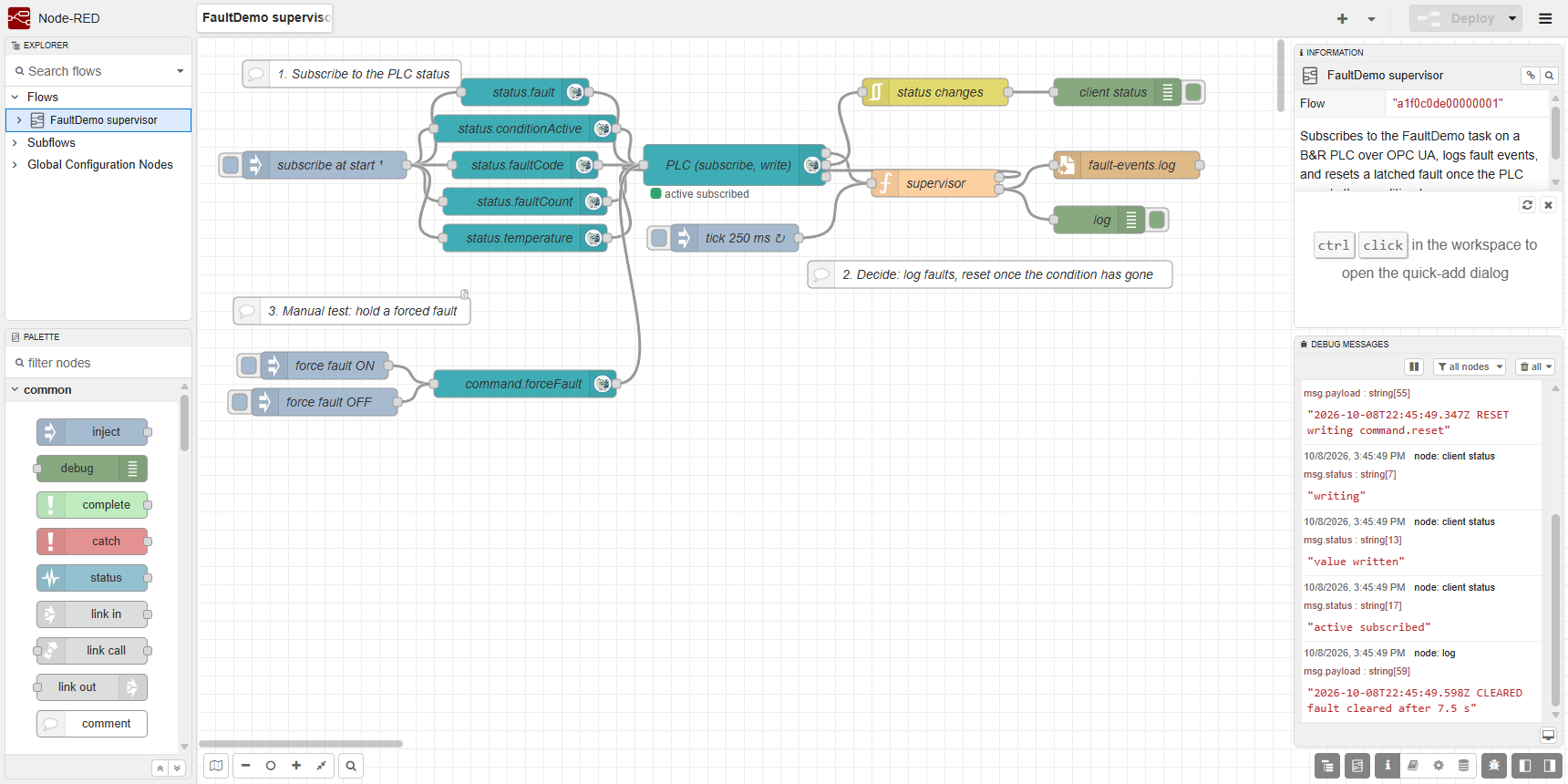
The flow has three parts: subscribe, decide, and act.
6.1 The endpoint
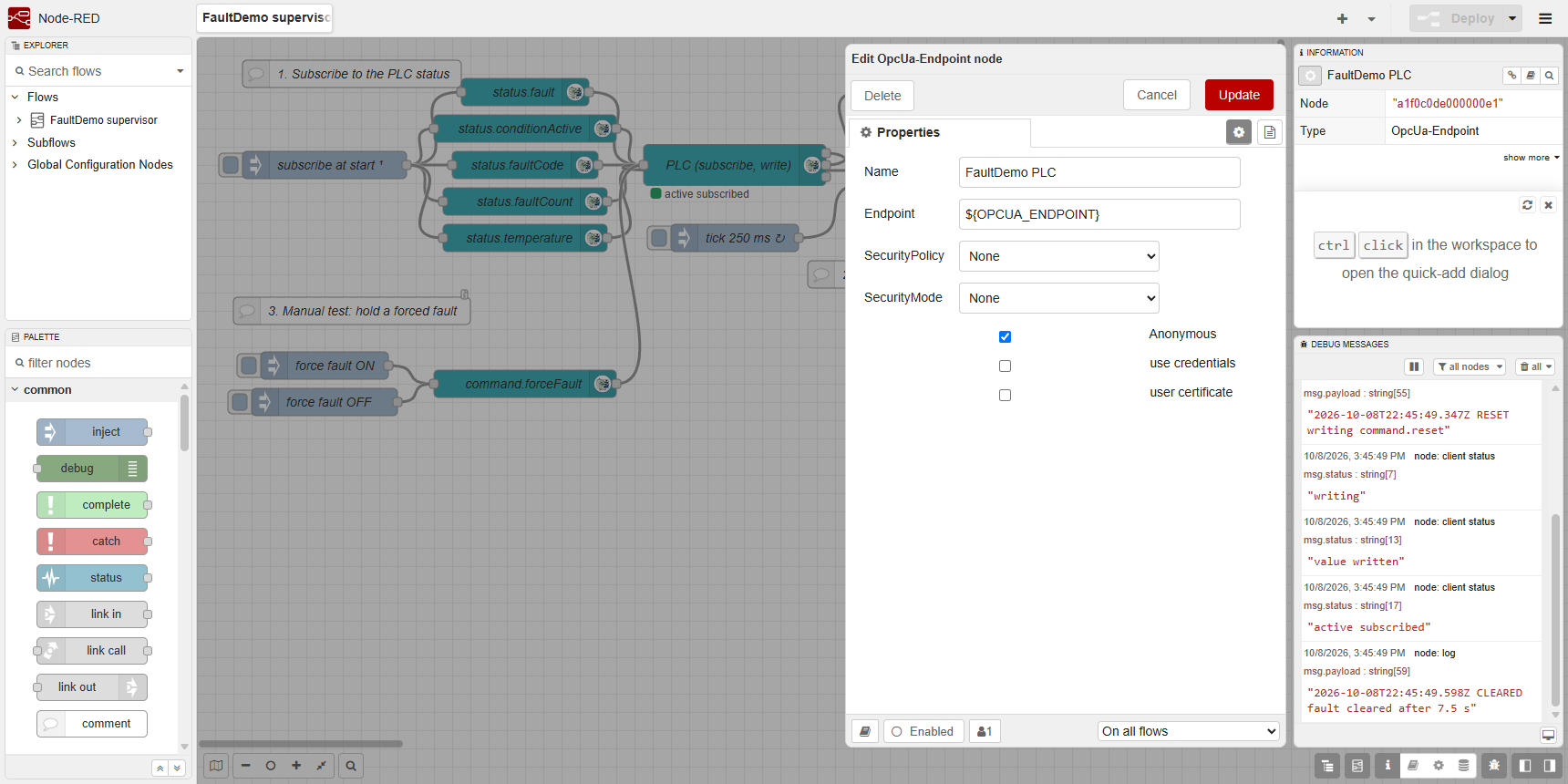
The OpcUa-Endpoint configuration node holds the connection:
- Endpoint:
${OPCUA_ENDPOINT}. Node-RED replaces${...}in a node property with the environment variable, so the compose file decides which PLC to use. - SecurityPolicy and SecurityMode: None.
- Anonymous: checked.
The endpoint URL you configure is the one that gets used. The PLC advertises its own address (opc.tcp://127.0.0.1:4840 on ARsim), but node-opcua does not switch to it for SecurityMode None, so host.docker.internal works.
6.2 Subscribe
- An inject node fires once, 2 s after start. Set its payload to an empty string, not a timestamp (see the note below).
- It feeds one OPC UA Item node per variable. Set Item to the NodeId and Type to the OPC UA type from the table in step 4.
- All the Item nodes feed one OPC UA Client node: Action
SUBSCRIBE, Interval250 ms.
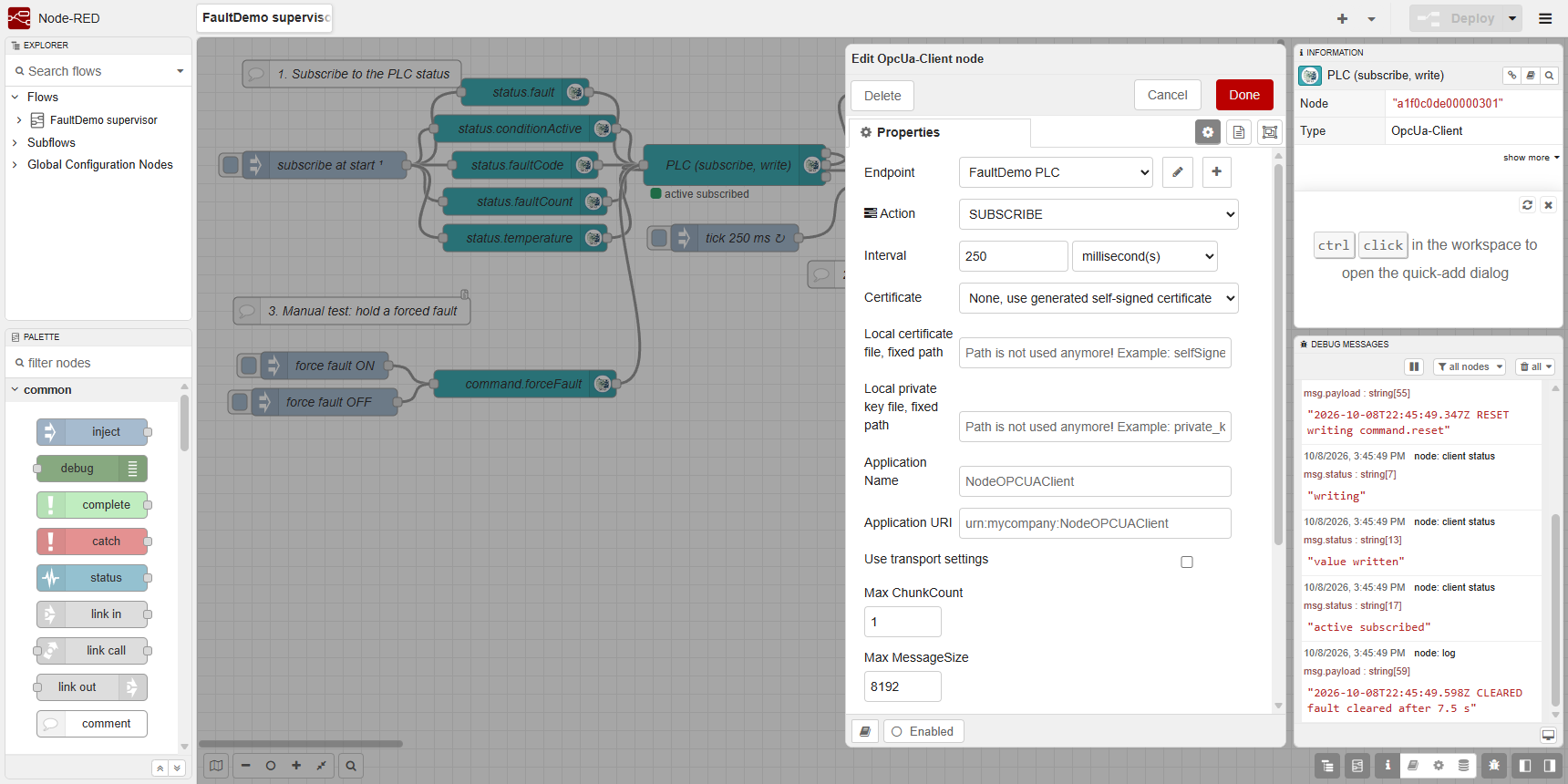
- Change the interval. The client node defaults to 10 s. It sets the subscription’s publishing interval and each item’s sampling interval, so at 10 s every change arrives up to 10 s late. The PLC serves sampling from a fixed set of timers (10 ms to 60 s, 8 by default; see B&R Help “Sampling”).
- The payload is not just a trigger. A number above 100 in
msg.payloadis taken as that item’s sampling interval in ms. Inject timestamps are excluded, but an empty string removes the doubt.
Each change arrives as its own message: msg.topic is the NodeId, msg.payload the new value. msg.statusCode, msg.sourceTimestamp and msg.serverTimestamp come with it. The first values arrive as soon as the subscription starts, so the flow knows the PLC’s state without waiting for a change.
6.3 Decide
A function node, supervisor, keeps the last value of every variable in node context and decides what to do. Output 1 is the reset command; output 2 is log lines.
// Supervises the FaultDemo task on the PLC.
// In:    data changes from the OPC UA subscription (msg.topic = NodeId), and a 'tick' every 250 ms
// Out 1: the reset command, back to the OPC UA client as a write
// Out 2: log lines, to the log file and the debug sidebar
const NS = 'ns=6;s=::FaultDemo:task.';
const SETTLE_MS = 1000;      // the condition must stay clear this long before we reset
const RETRY_MS = 5000;       // resend a reset the PLC did not act on
const FAULT_DETAIL_MS = 300; // fault, faultCode and faultCount change in one PLC scan but arrive
                             // as separate notifications: read the details this long after the edge
const FAULT_TEXT = { 1: 'over-temperature', 2: 'forced' };

if (msg.topic !== 'tick' && !String(msg.topic).startsWith(NS + 'status.')) {
    return null; // the subscriptionId message, and the results of our own writes
}

const plc = context.get('plc') || {};
const now = Date.now();
const lines = [];   // [time, text]
let reset = null;

if (msg.topic !== 'tick') {
    const name = msg.topic.slice(NS.length);   // e.g. 'status.fault'
    const before = plc[name];
    plc[name] = msg.payload;
    context.set('plc', plc);

    if (name === 'status.fault' && msg.payload !== before) {
        if (msg.payload === true) {
            context.set('faultSince', now);
            context.set('faultDetailDue', now + FAULT_DETAIL_MS);
            // Restart the settle timer: conditionActive may still arrive in a later notification
            context.set('clearSince', plc['status.conditionActive'] === false ? now : null);
        } else if (before === true) {
            const seconds = (now - context.get('faultSince')) / 1000;
            lines.push([now, `CLEARED  fault cleared after ${seconds.toFixed(1)} s`]);
            context.set('resetSentAt', null);
        }
    }

    if (name === 'status.conditionActive' && msg.payload !== before) {
        context.set('clearSince', msg.payload === false ? now : null);
        if (msg.payload === false && plc['status.fault'] === true) {
            lines.push([now, `OK       condition gone, resetting in ${SETTLE_MS} ms`]);
        }
    }
}

// FAULT: log the details once the rest of the PLC scan has arrived
const faultDetailDue = context.get('faultDetailDue');
if (faultDetailDue && now >= faultDetailDue && plc['status.fault'] === true) {
    context.set('faultDetailDue', null);
    const code = plc['status.faultCode'];
    const temperature = plc['status.temperature'];
    lines.unshift([context.get('faultSince'),
        `FAULT    code=${code} (${FAULT_TEXT[code] || 'unknown'}), ` +
        `temperature ${temperature?.toFixed(1)} C, fault #${plc['status.faultCount']}`]);
}

// RESET: the fault is latched and the condition has stayed clear for SETTLE_MS
const clearSince = context.get('clearSince');
const resetSentAt = context.get('resetSentAt');
if (plc['status.fault'] === true && plc['status.conditionActive'] === false &&
    clearSince && now - clearSince >= SETTLE_MS &&
    (!resetSentAt || now - resetSentAt >= RETRY_MS)) {
    context.set('resetSentAt', now);
    reset = { action: 'write', topic: NS + 'command.reset', datatype: 'Boolean', payload: true };
    lines.push([now, 'RESET    writing command.reset']);
}

return [reset, lines.map(([time, text]) => ({ payload: `${new Date(time).toISOString()} ${text}` }))];
A second inject node sends msg.topic = "tick" every 250 ms, so the timers advance even when no PLC value changes.
Two details matter more than they look:
- Variables changed in the same PLC scan arrive as separate messages, in no guaranteed order. In testing,
faultCodereached the function before the newfaultCount, and the first version of this flow logged the previous fault’s number. The flow therefore reads the details 300 ms after thefaultedge. - Reset on a settled state, not on one message. If
fault = TRUEarrives beforeconditionActive = TRUEfrom the same scan, the storedconditionActiveis briefly a staleFALSE. Requiring the condition to stay clear for 1 s avoids sending a reset the PLC would reject (status.resetsRejectedcounts those).
6.4 Write back
Wire output 1 back into the same OPC UA Client node. msg.action = "write" overrides the node’s SUBSCRIBE action for that one message. The write needs:
| Property | Value |
|---|---|
msg.action |
write |
msg.topic |
the NodeId. It must start with ns=, or the write is skipped without an error. |
msg.datatype |
the OPC UA type, e.g. Boolean |
msg.payload |
the value |
Use one client node per PLC. In testing, a second client node (one to subscribe, one to write) failed on a fresh container with Invalid endpoint while both created the client certificate at the same moment. It reconnected later, but the first reset written to it was lost.
6.5 Log
Wire output 2 to a debug node and to a write file node:
- Filename:
/logs/fault-events.log, which is thelogsfolder on the host. - Action: append to file, with Add newline (\n) to each payload? ticked.
The client node’s second output reports its connection status in msg.status. It sends one on every data change (active subscribed), so a debug node wired straight to it buries the log lines. Put a filter node in between, with Mode “block unless value changes” and Property msg.status, and the sidebar shows only changes, such as session active, writing, value written or connection error.
6.6 Manual test buttons (optional)
Two inject nodes set msg.payload to true and false, and msg.action to write. They feed an OPC UA Item node for ns=6;s=::FaultDemo:task.command.forceFault (Type Boolean), which feeds the client. force fault ON latches a fault with code 2 at any temperature; Node-RED resets it about a second after force fault OFF.
7. Optional: log in with a user name
Anonymous access keeps the demo short. To make Node-RED log in as a user, add the user on the PLC and give the endpoint credentials.
On the PLC:
- In AccessAndSecurity → UserRoleSystem →
User.user, add a user, for examplenodered. The user name is the login name. Enter its Password, and assign the roleNodeRedClientfrom step 3. The editor shows the password only as***, and Automation Runtime 6 stores it as an Argon2 hash, so set it in the editor rather than in the file. - In
UaCsConfig.uacfg, check that Security → Authentication → Authentication Methods → Username is Enabled (the default). To refuse anonymous logins, set Anonymous to Disabled.
In Node-RED, edit the OpcUa-Endpoint node:
-
Untick Anonymous, tick use credentials, and fill in User and Password.
-
To keep the password out of Node-RED’s files, type
${OPCUA_USER}and${OPCUA_PASSWORD}into those two fields. Node-RED substitutes environment variables in credentials as it does in other properties. Pass the values to the container indocker-compose.yml:environment: OPCUA_ENDPOINT: ${OPCUA_ENDPOINT:-opc.tcp://host.docker.internal:4840} OPCUA_USER: ${OPCUA_USER:-} OPCUA_PASSWORD: ${OPCUA_PASSWORD:-}and put the values in a
.envfile next to it, which Docker Compose reads ondocker compose up. Keep.envout of git.
A wrong password stops the connection: the client node logs BadUserAccessDenied (0x801f0000) and its status output reports connection error. A failed connect also writes the credentials to the log in plain text (see Securing the connection). With SecurityPolicy None, the password itself still travels encrypted with the PLC’s certificate (the login request in testing used RSA-OAEP), but everything after the login is plain text.
Tested on ARsim: a password typed into the node, and the same credentials from environment variables, both logged in, subscribed and wrote; a wrong password was refused.
Verification
-
The OPC UA Client node’s status reads
active subscribed. -
Every 40 s the debug sidebar, and
logs/fault-events.log, show one cycle:2026-10-08T21:30:38.795Z FAULT code=1 (over-temperature), temperature 92.4 C, fault #12 2026-10-08T21:30:45.049Z OK condition gone, resetting in 1000 ms 2026-10-08T21:30:46.051Z RESET writing command.reset 2026-10-08T21:30:46.300Z CLEARED fault cleared after 7.5 s -
On the PLC, in a watch window:
task.status.faultCountgoes up by one each cycle,task.status.faultreturns toFALSE, andtask.status.resetsRejectedstays0. -
Click force fault ON, wait a few seconds, then click force fault OFF. The log shows
code=2 (forced), thenRESETabout a second after OFF, thenCLEARED.
On the test setup, Node-RED saw each fault within 0.2 s of a second OPC UA client sampling at 100 ms. The PLC cleared each fault 1.2 to 1.3 s after its condition went away: the 1 s settle time plus the round trip.
Troubleshooting
| Symptom | Cause | Fix |
|---|---|---|
Invalid endpoint on one OPC UA Client node, only on a new container |
Two client nodes create the client certificate at the same moment | One client node per PLC; send writes with msg.action = "write" (step 6.4). |
| Client connects, but no values arrive, or reads return an access error | Anonymous sessions have only BR_Anonymous, which can Browse but not Read |
Map anonymous access to a role with Read and Write (steps 2 and 3). |
No Authorization group in the .uacfg editor |
It is an advanced parameter | Make advanced parameters visible from the editor’s toolbar (step 2). |
BadUserAccessDenied (0x801f0000) when the endpoint uses credentials |
Wrong user name or password, or ${...} variables not set in the container |
Check the user in User.user and the container’s environment (step 7). |
Debug sidebar flooded with active subscribed |
The client’s status output sends a message on every data change | Put a filter node on msg.status in front of the debug node (step 6.5). |
Connection refused or timeout to host.docker.internal:4840 |
The OPC UA server is off, or ARsim is on a loopback address other than 127.0.0.1 | Check the Connectivity logbook for OPC UA server boot completed; run the simulator on 127.0.0.1. |
| Changes arrive seconds late, or in bursts | The client node’s Interval is still the default 10 s | Set it to 250 ms (step 6.2). |
| A short pulse on the PLC never reaches Node-RED | Sampling is asynchronous to the task; changes shorter than the sampling interval can be missed | Latch the state on the PLC and clear it by handshake, as fault and command.reset do here. |
| A write does nothing, and nothing is logged | msg.topic does not start with ns=, or msg.datatype is missing |
Send the full NodeId and the OPC UA type (step 6.4). |
BadNodeIdUnknown |
The variable is not enabled in the default view, or the namespace index or task name differs | Check the .uad, and read the NamespaceArray (step 4). |
| Members of one structure look like they come from different cycles | AR guarantees consistency only for basic types up to 4 bytes (8 within OPC UA); structures, arrays and strings are not read consistently | Subscribe to individual members, as this flow does. |
Securing the connection
Anonymous access and SecurityPolicy None are not recommended outside a demo. There are two things to secure: the OPC UA connection to the PLC, and the Node-RED editor.
The OPC UA connection
The OpcUa-Endpoint node supports these logins and security settings:
| Setting in the endpoint node | PLC side | Status |
|---|---|---|
| use credentials: user name and password | A user in User.user with a role; Authentication Methods → Username enabled (the default) |
Tested with SecurityPolicy None (step 7) |
| user certificate: X.509 certificate and private key file | Authentication Methods → X509 enabled, a user certificate store, and the certificate trusted and mapped to a role at runtime | Tested with SignAndEncrypt and with None. An untrusted certificate was refused with BadIdentityTokenRejected (0x80210000). See Log in with a user certificate |
| SecurityPolicy Basic256Sha256 or Aes128_Sha256_RsaOaep, SecurityMode SignAndEncrypt | Both policies and SignAndEncrypt are enabled by default in UaCsConfig.uacfg; Sign alone is not |
Tested: both policies with SignAndEncrypt, with the user name and anonymously, subscribed and wrote. Sign alone was refused (Invalid endpoint) because the PLC does not offer it. |
Nothing else had to be configured for encryption in testing, because neither side checked the other’s certificate:
- With no AppCertificateStore configuration selected, the PLC uses a self-generated certificate and trusts every client certificate (B&R Help, OPC UA C/S configuration → Security).
- node-red-contrib-opcua saved the PLC’s certificate to its trusted folder on the first connect, without asking. The folder is
/usr/src/node-red/.config/node-red-opcua-nodejs/PKIinside the container, not under/data, so a recreated container also gets a new client certificate.
The traffic is encrypted, but neither side proves who the other is. To make the PLC accept only known clients, select a managed certificate store as the AppCertificateStore configuration and turn on TrustList validation. Keep the client’s PKI folder on a volume so its certificate survives a container rebuild. This trust-list setup was not tested for this guide.
When a connection fails, node-red-contrib-opcua 0.2.355 writes the user name and password in plain text to the Node-RED log, in a warning that starts Case B: UserName & password does not match. Treat docker logs output from the Node-RED container as sensitive.
For a machine:
- Disable Anonymous under Authentication Methods. Leave User Role 1 under Anonymous Access empty.
- Disable SecurityPolicy None, and use SignAndEncrypt with Basic256Sha256.
- Log in with a user (step 7) whose role has only the permissions the client needs. Keep the password in the container environment, not in the flow.
Log in with a user certificate
A certificate login avoids storing a password in Node-RED. It takes more setup than a user name, because B&R does not let you assign a certificate to a role in the AS project: that happens at runtime, from an OPC UA session with the SecurityAdmin role.
In Automation Studio:
- Select AccessAndSecurity → ManagedCertificateStores in the Configuration View, and add a Certificate store configuration from the Object Catalog. This store holds the user certificates the PLC trusts. Fill in its default certificate:
- Give it a subject no other certificate on the PLC uses (Organization, Organizational unit, Common name).
- Set URI to
urn:<hostname>/BR/. On ARsim, which has no hostname, useurn:127.0.0.1/BR/.
- In
UaCsConfig.uacfg, set Security → Authentication → Authentication Methods → X509 to Enabled, then select the store as UserCertificateStore configuration. That parameter only appears once X509 is enabled, and without a store the PLC rejects every certificate login. - In
User.user, add a user with the roleBR_SecurityAdmin, and transfer the project.
At runtime, log in as that user over SignAndEncrypt and do two things:
- Call
AddCertificate(certificate, true)on the TrustList of the DefaultUserTokenGroup (under Server → ServerConfiguration → CertificateGroups). - Call
AddIdentityon the role in the server’s RoleSet, with a Thumbprint rule whose criteria is the certificate’s SHA-1 thumbprint in uppercase hex. The role wasns=1;s=UserRoles.Roles.NodeRedClientin testing.
Any OPC UA client that can call methods can do this. With Python’s asyncua:
trust_list = client.get_node(ua.ObjectIds.ServerConfiguration_CertificateGroups_DefaultUserTokenGroup_TrustList)
await trust_list.call_method(await trust_list.get_child("AddCertificate"),
                             ua.Variant(cert_der, ua.VariantType.ByteString), ua.Variant(True, ua.VariantType.Boolean))
role = client.get_node("ns=1;s=UserRoles.Roles.NodeRedClient")
rule = ua.IdentityMappingRuleType(CriteriaType=ua.IdentityCriteriaType.Thumbprint,
                                  Criteria=hashlib.sha1(cert_der).hexdigest().upper())
await role.call_method(await role.get_child("AddIdentity"), rule)
Both survived a warm restart in testing. A freshly installed ARsim starts empty, so repeat this after a full redeploy.
In Node-RED:
- Mount the certificate and its PEM private key into the container read-only, for example
- ./certs:/certs:ro. - In the OpcUa-Endpoint node, untick Anonymous, tick user certificate, and set Certificate file and Private key file to the mounted paths. Both files were PEM in testing; the node reads the key only as PEM.
The Node-RED editor
The editor can change the flow, and the flow can write to the PLC, so protect it too:
- Set
adminAuthin/data/settings.jsto require a login. Node-RED stores bcrypt password hashes there; generate one withnode-red admin hash-pw. See Securing Node-RED. This was not tested for this guide. - Keep port 1880 published on
127.0.0.1only, as the compose file does, until the editor has a login. Add HTTPS before exposing it on a network.
Before you use this on a machine
- Secure the connection and the editor as described above.
- Keep one OPC UA session per PLC.
- Expect a gap when the PLC restarts. After a warm restart in testing, the client node logged
Liveness check failed (1): Invalid Channel BadConnectionClosed, a second failure 15 s later, thenServer not responding, forcing reconnection, and re-subscribed without help: about 27 s from the restart to fresh data. A fault that latched during the gap arrived with the subscription’s first values and was handled normally, which is why the PLC latches it. ItsFAULTline carries the time Node-RED saw it, not the time the PLC latched it.
Related
- B&R Help, OPC UA C/S configuration: HelpID 5450009. Its “Security” and “Sampling” pages cover the settings in step 2 and the sampling timers.
- B&R Help, OPC UA C/S default view editor: HelpID 5450001.
- B&R Help, OPC UA C/S default view configuration: HelpID 5450010, and its DefaultRolePermissions page (
bf700bda-3ee7-4bca-a1a8-c879a1d2d8a1). - B&R Help, Well-Known Roles:
3fcf0f57-9b1b-4915-97c1-3d3a3c472410. - B&R Help, Editing roles in the user role system: HelpID 3003757.
- Running Node-RED under Docker
- node-red-contrib-opcua. A commercial alternative is Sterfive’s
@opcua/for-node-red, which needs a paid license for production use. - Docker Desktop networking how-tos (
host.docker.internal)